Supervising Claude Code skill and subagent runs from your phone
Supervise long Claude Code skill and subagent runs from your phone with Remote Control: which prompts reach you, what can run unattended, which rules to set.
Agent Skills

Starting a long skill run at your desk and checking on it from somewhere else is the obvious use of Claude Code Remote Control. For people who write and run skills, subagent fan-outs and multi-step SKILL.md workflows, the interesting questions are narrower than whether it connects. What does a phone actually show of a run that has subagents going in the background? Which prompts reach you, which ones stop the run until you answer, and which skills are reasonable to leave alone while you are away?
This article answers those questions from Anthropic's own documentation, checked on October 28, 2026. The documented requirements are short: a claude.ai login on a Pro, Max, Team or Enterprise plan (an Owner has to switch it on for Team and Enterprise), no API keys, and no Amazon Bedrock, Google Cloud or Microsoft Foundry routing. The full list is on the Remote Control page. Nothing below comes from our own testing. Where the docs state a behavior, we cite it. Where we offer a judgment, such as which skills to leave unattended, we label it as ours.
What the phone sees of a skill run
Remote Control does not move the run anywhere. The session keeps executing on your machine, and the phone or browser is a window into it. Everything the session already has stays local: the project files, MCP servers, tools, hooks and the skills installed on that host. A skill does not need to exist on the phone, because the phone never executes anything.
The docs make one point that matters for subagent-heavy skills. The conversation and the progress of subagents and dynamic workflows stay in sync across the terminal, the browser and the phone. When a device connects, it shows any subagents and workflows the session already has running in the background, and stopping one of them from the device stops that task on your machine. So the stop button on a phone is a real control over a fan-out, not a view-only indicator.
What you can send is wider than plain messages. Photos you attach are seen by Claude directly. Other files are downloaded to the host and passed in as @ references, and if a file cannot be downloaded, Claude receives a note such as [1 of 3 attachments did not arrive] in its place. Several built-in commands also work from mobile and web, and a few of them are directly useful while a long skill is running:
/context,/compactand/clearfor managing a long session./usageto see where you stand against plan limits./modeland/effort, which take their value as an argument on mobile and web, for example/model sonnetor/effort high./rename, which changes the session title that shows up in the list./recap,/mcp(a text summary on mobile) and/config key=value.
Some commands are local-only. /plugin and /resume work only from the local CLI. The /mcp picker is not available on mobile or web, so a claude.ai connector that needs re-authorization has to be handled from the host with claude mcp login "claude.ai Slack" --no-browser, followed by /mcp reconnect. A line that starts with ! sent from the phone goes to Claude as a message and does not run in shell mode.
The docs contain one sentence that is specifically about skills. They say /claude-api is unavailable when you type it from mobile or web, and that Claude can still load that skill on its own there. That is the only skill-related statement in the pages we read. Whether typing a custom skill's slash command from a phone works the same way is not documented, and we did not test it. Plan around Claude loading a skill itself from a plain-language request, and verify the typed form on your own setup before you rely on it.
The approval loop on a phone
Supervising a skill from a phone is mostly about approvals. Two documented behaviors shape how that loop feels.
What reaches your phone
Both permission prompts and AskUserQuestion questions are forwarded to the connected device, and Claude Code leaves them open until someone answers. Notifications are what tell you a run is waiting. With Remote Control active, Claude may push a message to your phone, usually at the end of a long task or when a decision is needed. You can also ask for one in your prompt; the docs give "notify me when the tests finish" as an example. To set it up, install the app, sign in with the same account, grant the operating system's notification permission, then switch push on in /config, choosing proactive notifications, permission prompts and questions, or both. Finer per-event settings do not exist.
For skill authors the practical reading is that the two toggles decide whether a stalled run can reach you at all. A run that needs approval for a new tool but has the permission-prompt toggle off will sit until you open the app on your own.
What waits and what expires
Not every dialog behaves the same way, and the differences decide whether a run is safe to leave.
| Item | Documented behavior |
|---|---|
| Permission prompt | Stays open until you answer it |
AskUserQuestion question | Stays open until you answer it |
| Other forwarded dialogs, such as the model-choice prompt after a safety refusal | Closes after five minutes by default and takes its no-action default; dialogExpiry adjusts or disables it (v2.1.224 or later) |
| Usage-credits consent prompt for Fable models | Shown only where the session runs, not on your device; if nobody at the terminal answers before it closes, the turn ends without sending the request |
| claude.ai connector sign-in | The /mcp picker is unavailable on mobile and web; authorize from the host shell |
Two consequences follow. First, a run with many permission prompts becomes a series of waits, and the docs give no expiry for those prompts. A skill that asks for approval at step three of twelve will pause there for as long as you are out of reach. Second, a few dialogs do not wait at all. They expire into a default, or end a turn, so a run that depends on one of them is not as patient as the permission prompts are.

Permission settings that matter for unattended skills
Modes, as offered to a Remote Control session
According to the permission-modes page, four modes can be picked from the app when you began the session yourself on your local machine: Manual, Accept edits, Plan and Auto. Bypass permissions cannot be chosen from the app. The switch is a dropdown below the prompt box on claude.ai/code; in the mobile app it is the plus button in the prompt box, followed by Permission. Whatever mode the local session is in, including one set in the terminal, is what the dropdown displays, and a change made on either side appears on the other. A starting mode can also be set when you launch the server, as in claude remote-control --permission-mode acceptEdits.
| Mode | What the docs say | Fit for a skill run (our judgment) |
|---|---|---|
| Manual | Prompts on first use of each tool | Every new kind of tool call pings the phone; good for the first run of an unfamiliar skill |
| Accept edits | Auto-accepts file edits and common filesystem commands such as mkdir, touch, mv and cp in the working directory or additionalDirectories | Fits skills that only change files in a worktree |
| Plan | Claude reads files and runs read-only shell commands but does not edit your source files | Fits research and review skills |
| Auto | A background classifier checks actions before they run; reduces prompts but does not guarantee safety; explicit ask rules still force a prompt | Fits longer runs, paired with ask rules for the steps you care about |
| Bypass permissions | Skips prompts; the docs advise isolated environments such as containers or VMs; not selectable from the app | Not a phone-supervision mode |
| dontAsk | Auto-denies anything that would prompt; described for locked-down CI and scripts; not in the app's list | A different tool, aimed at scripts rather than supervised runs |
Auto mode comes with availability conditions. As of Claude Code v2.1.283, terminal and VS Code interactive sessions start in it by default, and the docs list model and provider requirements. Its classifier also screens every message Claude sends to another agent through SendMessage, which is relevant when a skill drives an agent team. According to the docs, auto mode cuts down on permission prompts without guaranteeing safety, and it is no substitute for review of sensitive operations.
The docs also describe a no-classifier alternative for fewer prompts: Manual mode with the Bash sandbox in auto-allow mode, started with claude --permission-mode default and then /sandbox, on macOS, Linux and WSL2. For a Remote Control server specifically, the --sandbox and --no-sandbox flags were removed in v2.1.300, and sandboxing is turned on in a settings file instead.
Rules, and where they are enforced
Permission rules are evaluated in a fixed order: deny, then ask, then allow. The first match decides, and specificity does not change that order, so an allow rule cannot carve an exception out of a deny rule. The docs also state that permission rules are enforced by Claude Code and not by the model. Instructions in your prompt or in CLAUDE.md shape what Claude tries to do, but they do not change what Claude Code allows.
That sentence has a direct consequence for skill authors, and the inference is ours. A line in a SKILL.md that says "never push without asking" is a request to the model. If a push really must reach your phone first, that needs an ask rule or a PreToolUse hook. Rules work whichever device you are using, so they are the right place for the steps you would otherwise try to protect with wording.
Gating subagent spawns and skills by parameter
Deny and ask rules can match a top-level input parameter on built-in tools, written Tool(param:value). The docs give three examples that matter for fan-out skills:
Agent(model:opus)matches Agent calls that request the Opus model tier.Agent(isolation:worktree)matches Agent calls that request a git worktree.Bash(run_in_background:true)matches Bash calls that run in the background.
An ask rule on the first one turns every Opus-tier subagent spawn into a decision on your phone, which is a cost gate rather than a safety gate. The same page notes that a Skill(skill:) deny rule matches the skill under any of its names, such as its alias or display name, so you can remove a skill you never want running unattended. We have not tested these rules. The docs add several limits: the parameter has to be a direct field of the tool input, a parameter the model omits is never matched, the value is compared against the literal input Claude sends before any normalization, and Agent(model:opus) matches the alias opus but not a full model ID. They suggest running with --verbose to see the exact parameter names and values in each tool call.
An illustrative settings block, not a recommendation for your repository:
{
  "permissions": {
    "deny": ["Bash(git push *)"],
    "ask": ["Agent(model:opus)", "Bash(run_in_background:true)"]
  }
}
Rules on command text have an inherent gap, because the same action can be written many ways. The docs point to sandboxing for filesystem and network enforcement that does not depend on the command text, and to a PreToolUse hook when you want your own logic to inspect the full command before it runs.
Project skills and workspace trust
If you run skills that came from a repository you did not write, one row in the docs' trust table deserves a read. Hooks in settings files, the env block, helper commands, and a project skill's hooks and allowed-tools are all used before you trust the folder, and the docs add that workspace trust never gates a skill's allowed-tools in any session. By contrast, frontmatter hooks in a project subagent are not used until you accept trust. The documented default for a Remote Control server is also relevant: in an untrusted directory it asks Trust? [y/N], and in a non-terminal context it exits with "Workspace not trusted". So an unattended server that exits on first start is behaving as documented, and the fix is to trust the directory once from a terminal.
The practical rule that follows, again our reading: open the SKILL.md frontmatter of any third-party skill before you let it run with nobody watching, and look at what it pre-approves.
Which skills are safe to leave running
The documented behaviors above suggest four questions to ask of any skill before leaving it alone. Does it need an approval that will block? Do its effects stay inside the checkout or worktree? Can git undo them? Does anything leave the machine? The tiers below are an editorial framework built on those questions, not something Anthropic publishes.
| Tier | Typical skill work | Suggested settings | Leave it unattended? |
|---|---|---|---|
| A: read-only | Research, code review, planning, repository summaries | Plan mode, or Manual with narrow allow rules | Yes; wait for the completion push |
| B: edits in a worktree | Refactors, test generation, documentation updates on a branch | Accept edits with --spawn worktree; deny rules on push and deploy commands | Yes for a bounded task; review the diff on return |
| C: effects outside the checkout | Pushing, opening pull requests, deploying, sending messages, migrations | Manual or Auto with ask rules; approve each step from the phone | Only while you can answer; the session waits |
| D: irreversible or credentialed | Deleting data, production changes, rotating keys | Do not run from a phone | No |
Worktree isolation is what makes tier B workable. In server mode, --spawn worktree gives each on-demand session its own git worktree, so parallel sessions do not edit the same directory. It needs a git repository or a WorktreeCreate hook, and pressing w at runtime toggles between same-directory and worktree spawn, with the choice saved for the project. The default capacity is 32 concurrent sessions.
Examples from the registry
We did not run any of the skills below. The classification comes from their registry descriptions, which means it is a starting point to confirm by reading each SKILL.md.
| Skill | Registry description | Likely tier, and why |
|---|---|---|
| code-review | "Code review assistance with linting, style checking, and best practices" | A, or B if it applies fixes; reading and reporting are easy to leave alone |
| code-change-verification | Runs the mandatory verification stack when changes affect runtime code, tests or build behavior in the OpenAI Agents Python repository | A or B; it is tied to that repository, so it is a pattern to copy rather than a drop-in |
| create-worktree-skill | A skill that creates a worktree when the user asks for one | B; git state changes locally and is reversible |
| create-handoff | "Create handoff document for transferring work to another session" | A or B; it writes a document, and the document is a good artifact to read on a phone |
| debug-hooks | "Systematic hook debugging workflow" | B; hooks execute commands, so changes to them deserve a review before the next run |
| create-subagents | Guidance for creating and using Claude Code subagents and the Task tool | A for the skill itself; the risk sits in the subagents it helps you define, which should get the narrowest tools |
For model and effort choices across a fan-out, our earlier piece on Opus 5.5 vs Sonnet 5.5 for agent skills covers routing per skill. For a comparison of how another agent product frames approvals, see OpenAI dots: the permission model and what to hand off.
Setting up a host for supervised runs
The documented pieces combine into a short setup. The commands and flags below come from the Remote Control page; the combination is our arrangement.
# on the always-on host, inside tmux so an SSH drop does not end the session
tmux new -s skills
cd ~/projects/my-app
claude remote-control --name "my-app skills" --spawn worktree --permission-mode acceptEdits
The docs recommend tmux or screen on a remote machine so the session survives an SSH disconnect. A few settings are worth deciding before you leave:
- Sign in with a claude.ai account, not an API key or a
claude setup-tokentoken. Tokens fromsetup-tokenandCLAUDE_CODE_OAUTH_TOKENonly make model requests and cannot establish Remote Control sessions. - Name the server.
--namesets the title in the session list, and with several sessions a legible name is how you find the right one on a small screen. - Turn on push in
/config, including the permission-prompt and question toggle, and install the app on the same account. - Pick the starting permission mode on purpose with
--permission-mode. An unrecognized mode stops the server at startup. - Trust the directory once from a terminal so an unattended start does not exit on the trust prompt.
- Run
/mcpchecks and connector authorizations before you leave, because the picker is not available from the phone.
Auto-connecting sessions is possible with remoteControlAtStartup, but only your user settings can switch it on, because a true value in project or local settings is ignored. A global flag written before remote-control is not passed to the sessions the server creates. For some flags, such as --settings, Claude Code refuses to start and tells you which one to remove.
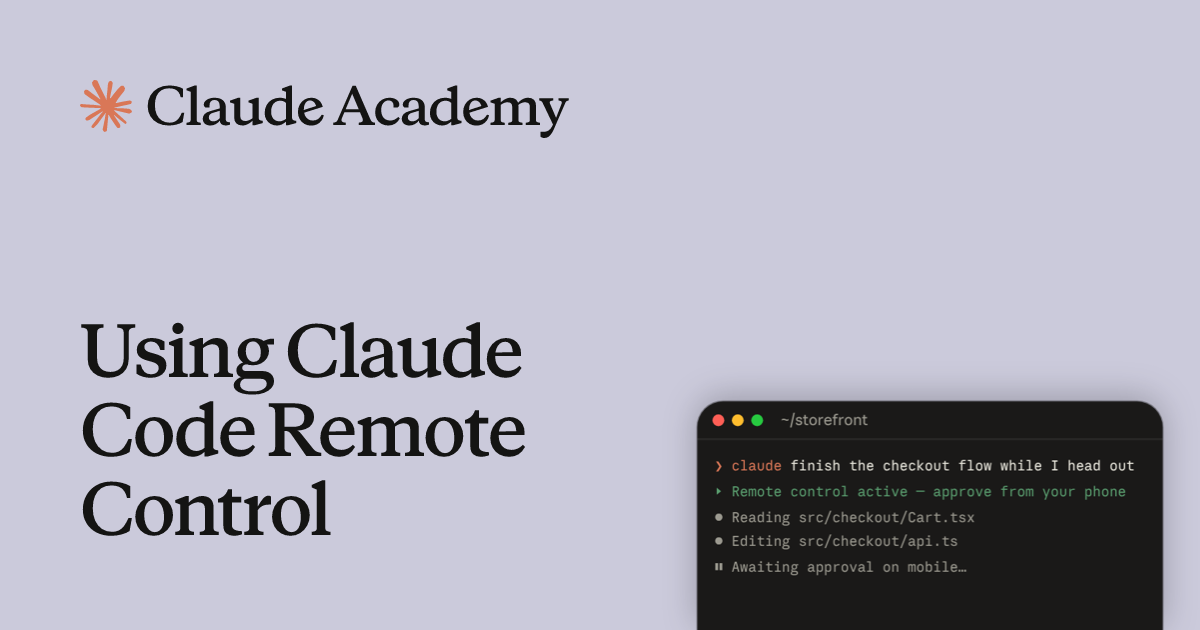
The video above is Anthropic's own walkthrough of the feature, linked from its Academy tutorial. We confirmed the video exists and its title through YouTube's oEmbed endpoint, and we did not summarize its contents here.
Writing SKILL.md files that supervise well
The documentation does not cover skill authoring for remote use, so this section is our suggestion, built on the documented behaviors and untested.
- Surface decisions as questions, not paragraphs.
AskUserQuestionquestions stay open until answered, and the push toggle covers questions. A skill that needs a human choice and asks for it as a question reaches the phone as something you can answer in one tap. Whether a skill can reliably trigger that tool is something to check on your setup. - Do not put enforcement in prose. Rules are enforced by Claude Code, so a step that must pause for a person belongs in an ask rule or a hook, with the SKILL.md wording as a backup.
- End each phase with a short status line. On a phone you read the tail of a session. A one-line summary after each phase makes a long run legible without scrolling.
- Write results to files in the worktree. A report on disk survives a dropped connection and a resumed session, and it can be attached to a pull request later.
- Make steps safe to repeat. The docs say a crashed server-mode session is served again when you send a message from a connected device (v2.1.238 or later), and
--continueand--session-idrestore sessions for about four hours after a server stops (v2.1.200 or later). A skill whose steps can be repeated without damage fits that model better than one that assumes a single clean pass. - Ask for a notification at the end. The docs' own example is a prompt line asking to be notified when the tests finish, and the same trick works for the last phase of a skill.
- Keep local-only commands out of the middle of a run. If a skill expects
/plugin,/resumeor the/mcppicker mid-flow, a phone cannot supply them.
What to check when you come back
A dropped connection looks the same whether the work stopped or kept going. The docs say that the "Remote Control disconnected" and "Can't reach" messages mean your browser or app lost contact with Claude Code on your computer, and neither message tells you whether Claude or a subagent you were watching is still working. The state to check is on the host, in the terminal where Claude Code runs.
| What happened | Documented behavior | What to do |
|---|---|---|
| Machine slept or network dropped (interactive session) | Reconnects on its own when the machine or network returns; retries as long as the outage lasts | Open the session list; the session should come back |
| Long outage (server mode) | Gives up after roughly 10 minutes and the process exits | Run claude remote-control again, then -c to continue |
| HTTP 403 refusals after a VPN or network change | Interactive sessions retry for up to three minutes, then disconnect and name what refused | Check the VPN, proxy and firewall |
| No contact with the server for about 30 minutes | An interactive session can disconnect with a message saying so | Run /remote-control to reconnect |
| Server-mode session crashed | Send a message from a connected device and Claude Code serves it again (v2.1.238 or later) | No restart needed |
| Server stopped | Sessions can be restored for about four hours with --continue or --session-id (v2.1.200 or later) | Resume inside that window, or start fresh |
| Approval is waiting | The prompt stays open until answered | Answer it, or lower what needs approval next time |
On return, check the worktree diff before anything else, then the subagent list, then /context and /usage to see how much of the session and your plan the run consumed. For a longer explanation of connection errors and what each documented message means, the Remote Control page's troubleshooting section lists a cause and fix for every message.
What we could not verify
- We did not test Remote Control or any skill named here. Every behavior is as documented by Anthropic on October 28, 2026, and the docs cite many version numbers, so compare
claude --versionagainst them. - Whether typing a custom skill's slash command from mobile or web works is not stated. The only skill-related statement we found is the
/claude-apisentence. - The docs do not say how a pending permission prompt in one subagent affects the others in a fan-out. We have described the prompt as waiting, which is what the docs say, and nothing beyond that.
- We could not confirm that a server started with
--permission-modeaccepts every mode listed in the permission-modes page. The documented example usesacceptEdits. - The Remote Control page lists no usage quota specific to the feature. How a supervised run counts against your plan is not covered in the pages we read.
- The tier framework and the registry classifications are our judgment from documented behavior and registry descriptions. They are not tested results.
- Early write-ups describe a narrower feature than today's docs; for example, a February 2026 write-up by Simon Willison reported one session at a time. Treat anything dated before this page as history. The current default server capacity is 32 sessions.
Verdict
Remote Control is a reasonable way to supervise skill and subagent work that already runs on a machine you control, because it keeps the local tools, hooks and skills in place and gives the phone real controls: answering prompts, stopping background tasks and switching modes. What it does not do is make an unattended run safe by itself. The safety comes from what you decide before you walk away: a starting mode, ask and deny rules for the steps that matter, a worktree per session, and a skill that is shaped to be read on a small screen.
If you take one thing from this article, take the split between prose and rules. Anything you need to stop before it happens belongs in a rule or a hook that Claude Code enforces. Anything you merely want to nudge belongs in the SKILL.md. Tier A and B skills fit supervision from a phone well. Tier C skills work while you can answer, and tier D skills should stay at a keyboard.
Next step
Ready to upgrade your agent?
Browse the open registry of agent skills for Claude Code, Codex, GitHub Copilot, and Antigravity. Every skill installs with one command.

